
Setup guide
Install TORQ on the factory ESP32-S3 hardware
This guide walks you through preparing the base factory device, setting up the correct ESP32-S3 drivers when needed, and using the updater to flash TORQ onto the hardware.
What is included in the ZIP
TORQ updater: installs the TORQ software after the device is prepared.
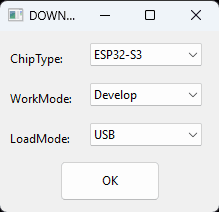
Flash tool: erases the existing factory software and opens the COM port connection.
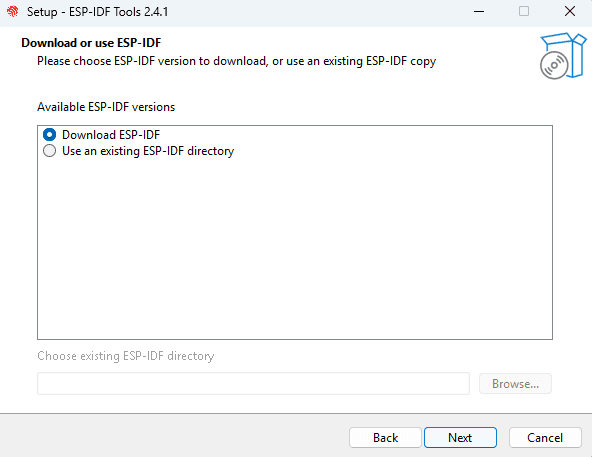
esp-idf-tools-setup...exe: installs ESP-IDF 5.5.4 and the correct ESP32-S3 USB drivers if Windows does not recognize the hardware.
Before you start
Use Windows and connect over USB-C
The tools included in the updater package are Windows executables. Start with the flash tool. Only run the ESP-IDF tools installer if the flash tool cannot see the device or no usable COM port appears.
Recommended path
Install in four steps
Download and unzip the updater package
After purchase, download the TORQ updater ZIP file and extract it to a normal folder on your Windows PC. Keep the updater app, flash tool, and ESP-IDF tools installer in the same extracted folder.
Connect the factory hardware by USB-C
Use a USB-C cable that supports data, not only charging. Plug the ESP32-S3 based device directly into your PC and wait a few seconds for Windows to detect it.
Prepare the device with the flash tool
Open the included flash tool first. Use it to erase the existing factory software and establish the COM port connection that the updater needs before installing TORQ.
Run the TORQ updater
Once the flash tool shows the device on a COM port, open the TORQ updater and follow the on-screen steps to install the latest TORQ software onto the hardware.
Driver fallback
If the hardware is not detected
Run the included esp-idf-tools-setup...exe installer and select ESP-IDF version 5.5.4. This installs the toolchain and drivers needed for ESP32-S3 devices so Windows can expose the connected hardware as a COM port.
After installation, unplug the device, plug it back in, then reopen the flash tool and check the COM port list again.
Flash preparation
Erase factory software first
The factory firmware must be removed before TORQ is installed. Use the included flash tool for this step, confirm that the correct COM port is selected, and let the erase process complete before opening the TORQ updater.
Do not unplug the device while erase or install operations are running.
Updater usage
Using the TORQ updater
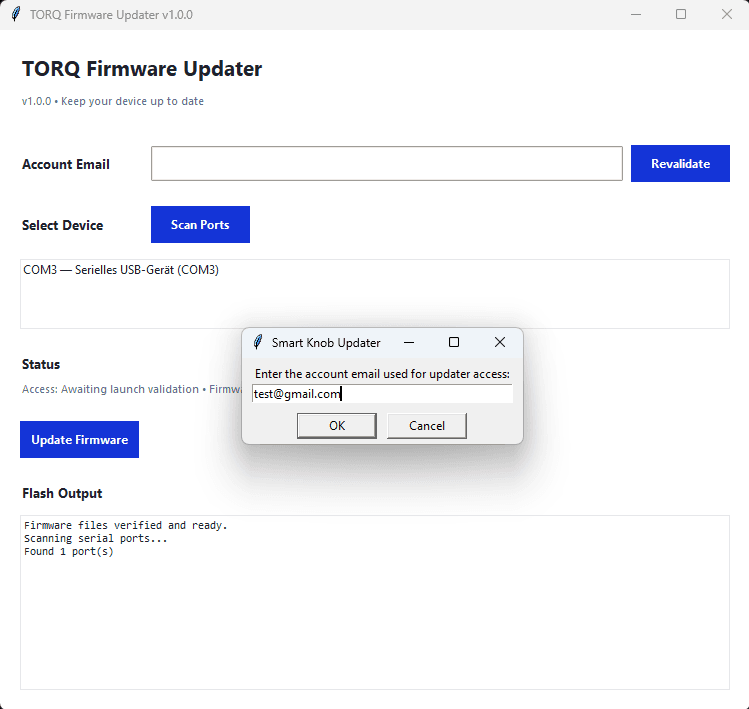
Open the TORQ updater after the flash tool has finished erasing the factory software. The updater works in three steps:
- 1Enter your purchasing email. This is the email address used at checkout. You can look it up any time on the license dashboard page.
- 2Select the COM port. Choose the port the device is connected to from the dropdown — this is the same port shown in the flash tool.
- 3Click Update Firmware. The updater downloads and flashes the latest TORQ release. Keep the device connected until the progress bar completes and a success message appears.
Troubleshooting
If the COM port still does not appear
- Try another USB-C cable and avoid USB hubs while flashing.
- Close the flash tool before running the updater if only one app can access the COM port.
- Reconnect the device after driver installation so Windows refreshes the COM port.
- Run the tools as administrator if Windows blocks driver or serial access.
- Restart your PC after installing the ESP-IDF drivers, then reopen the flash tool.
- Start the flash tool first, then unplug and replug the USB-C cable into the device — repeat a few times until the port appears.
- Open Device Manager and expand the "Connections (COM & LPT)" section — you should see "Serial USB-Device (COM*)" listed there once the device is recognised.